
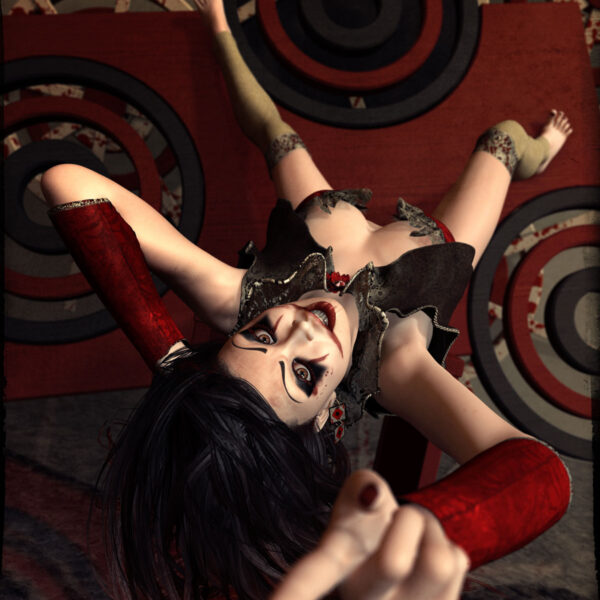
Fitting Clothing to La Femme 2 Characters
Part 1 Fitting Conforming Clothing
Step 1
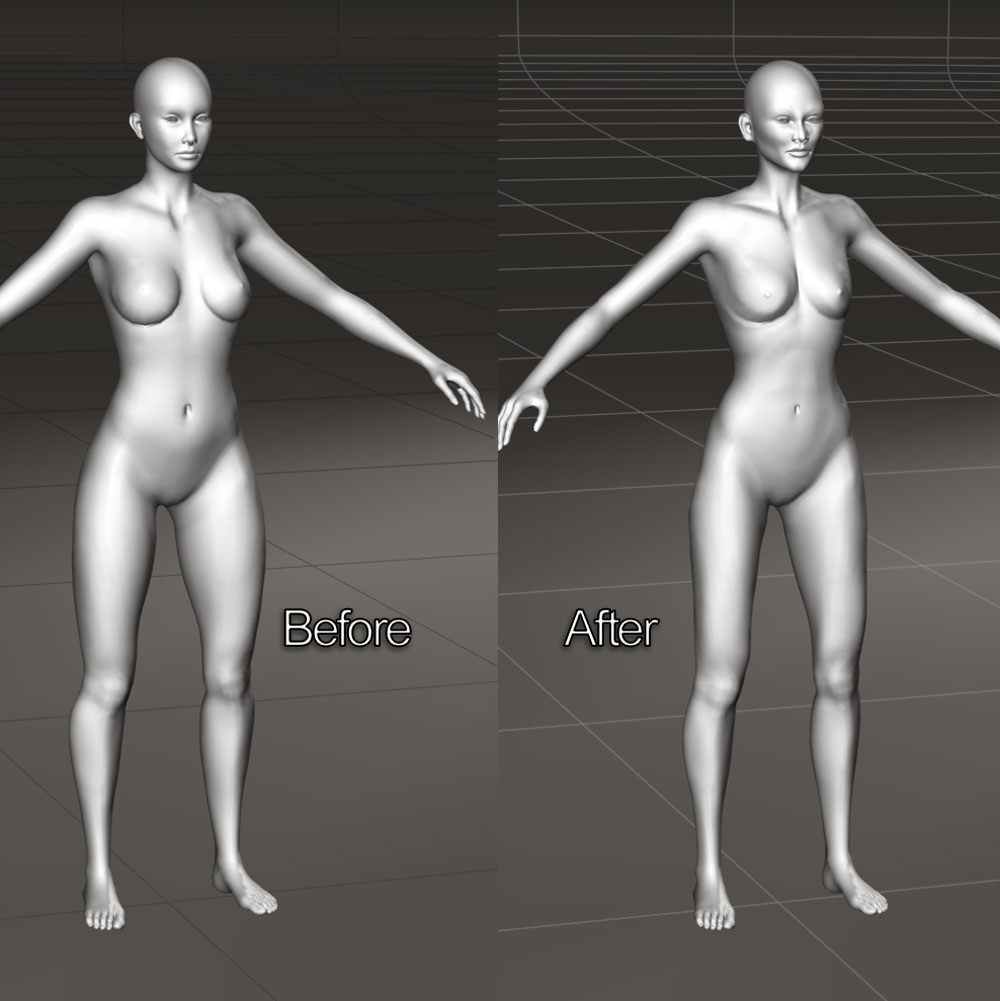
Start by loading the La Femme 2 base figure. Now apply your body morph to the figure. I’ll be using my D9S Zoe for La Femme 2 character for this tutorial. As you can see, I have applied the character’s body morph to La Femme 2. Now we can move on to the next step.
Step 2
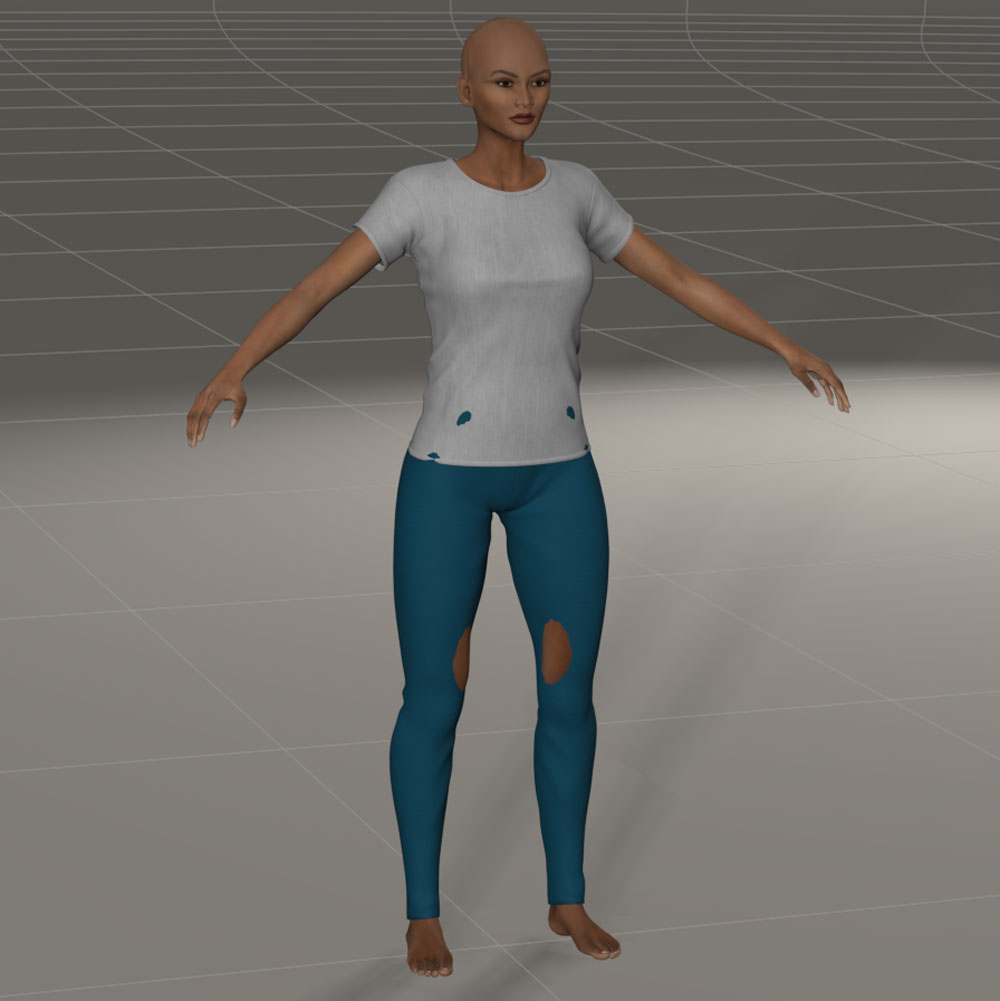
Now choose your favored conforming clothing from the Figures Library and then conform the piece or pieces to La Femme 2 as you normally would. (I’ll be using Basics for La Femme 2 by RPublishing for this tutorial.) As you can see in the preview render, there are poke-throughs due to the differences between the base figure which the clothing was originally made for and the custom morph.
Step 3
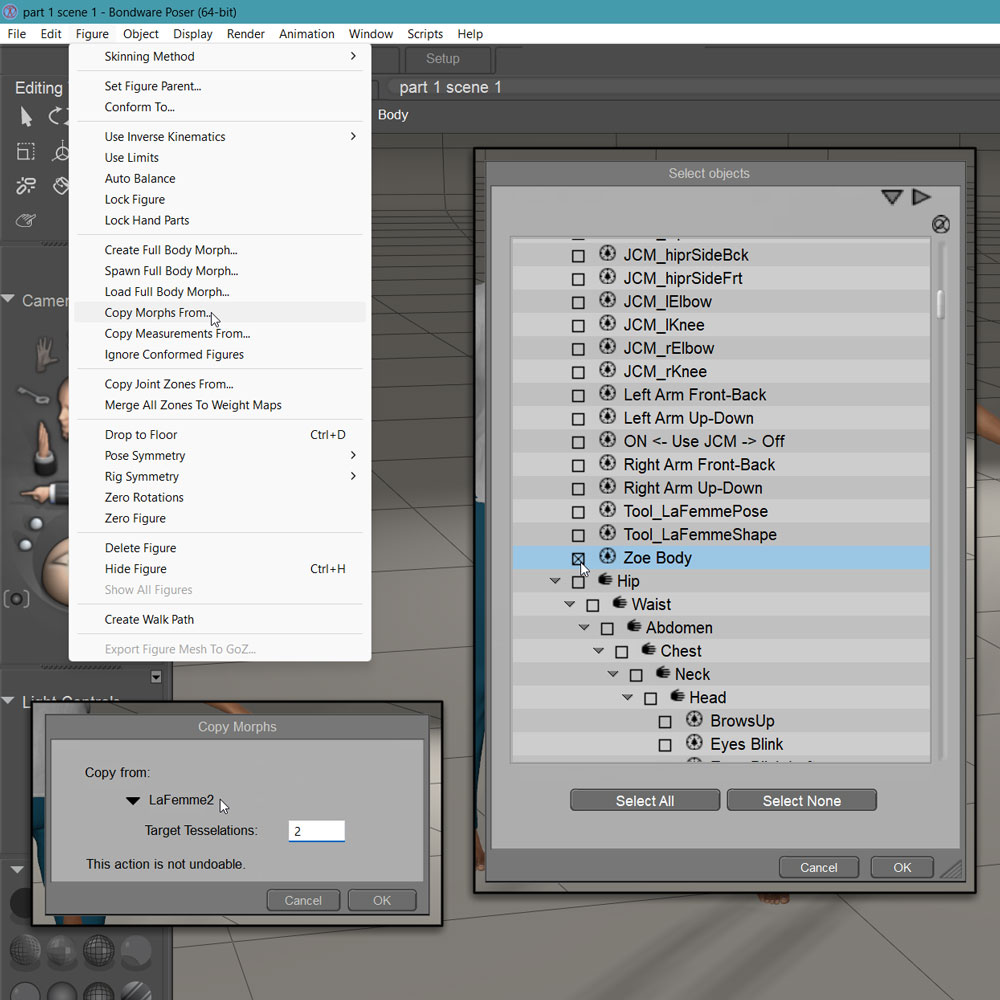
With a conforming clothing piece selected, go to the top menu bar and select “Figure–>Copy Morphs from…”. A popup called “Copy Morphs” will pop up (as seen in the image at right). Select your base figure which in this case is La Femme 2. Next, a “Select Objects” window will popup. Click “Select None” and then find the body morph you want your clothing to match. In this case, the morph I want to copy is “Zoe Body”. There is no need to copy all of those other morphs. Repeat this step for all of your conforming clothing pieces on your figure.
Step 4
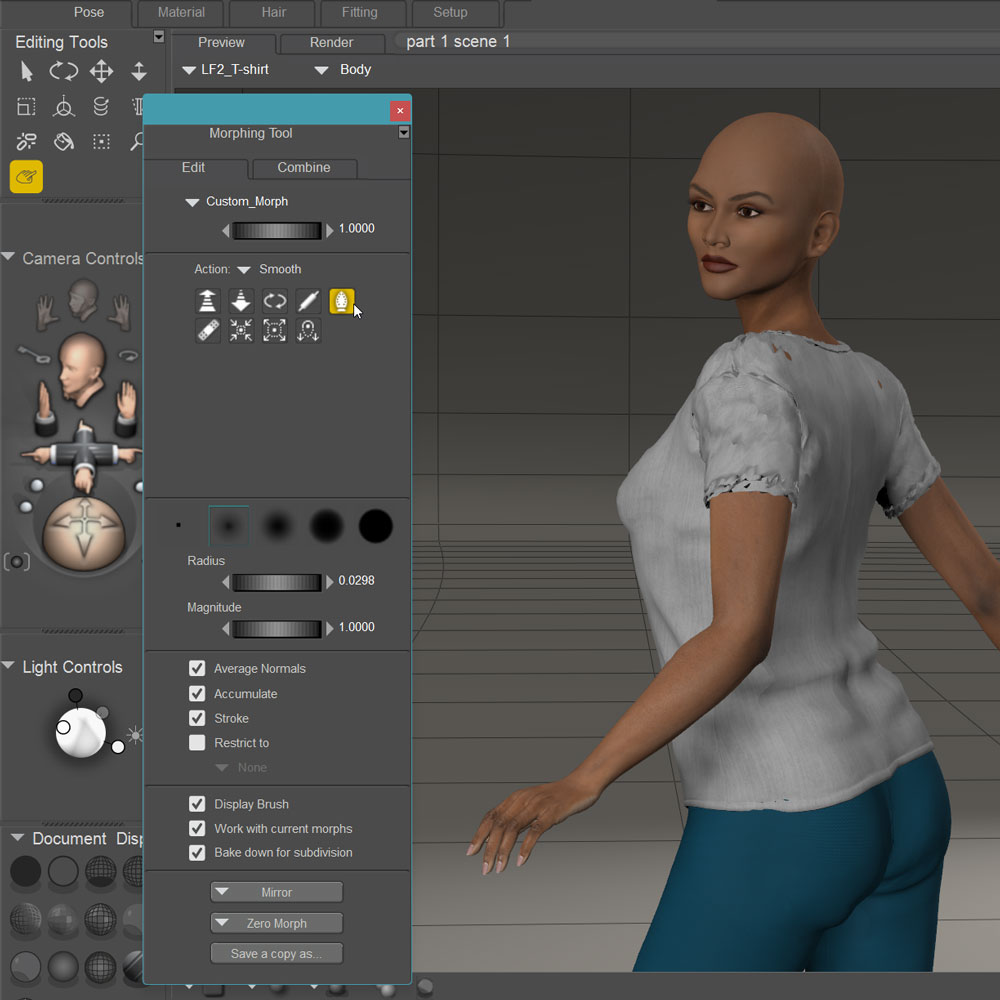
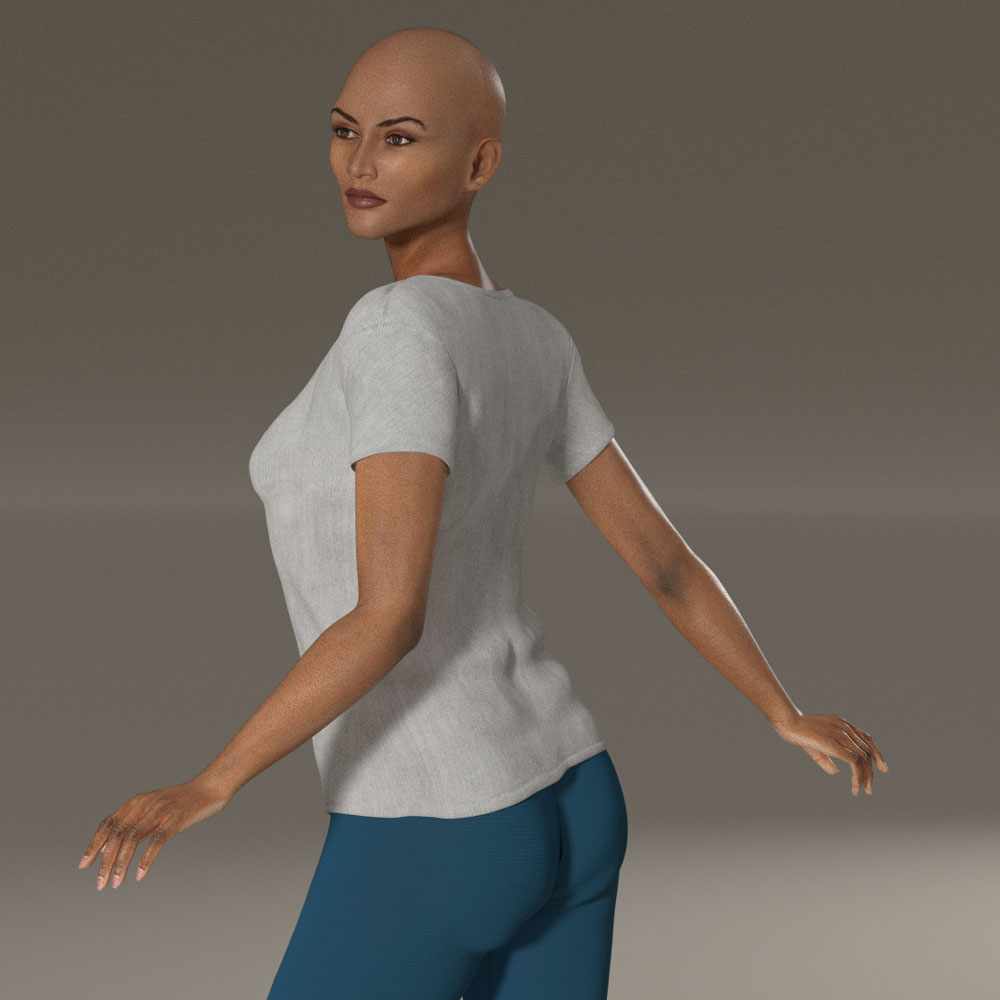
As you can see at right, the clothing now fits her custom body shape. Sometimes the results can look a little “rough around the edges”. You can easily fix that with the Smooth Morphing Tool. Select the “Morphing Tools” from the “Editing Tools”. With your clothing item selected, click the arrow near the top and create a new morph. Next, select the Smooth tool and brush over the rough spots.
Step 5
We’re done! The clothing now fits her perfectly and no longer has any rough edges. If you repose the character, you may need to smooth the clothing out with the that morphing tool again. All five of these steps should work on any conforming clothing. At least I haven’t encountered any that do not work this way.
Part 2 Fitting Dynamic Clothing
Step 1
In this part of the tutorial, which will be done in Poser 13, we are going to fit some La Femme 2 dynamic clothing to a custom LF2 character. Start by loading your La Femme 2 base figure in a zero pose and without any morphs yet.
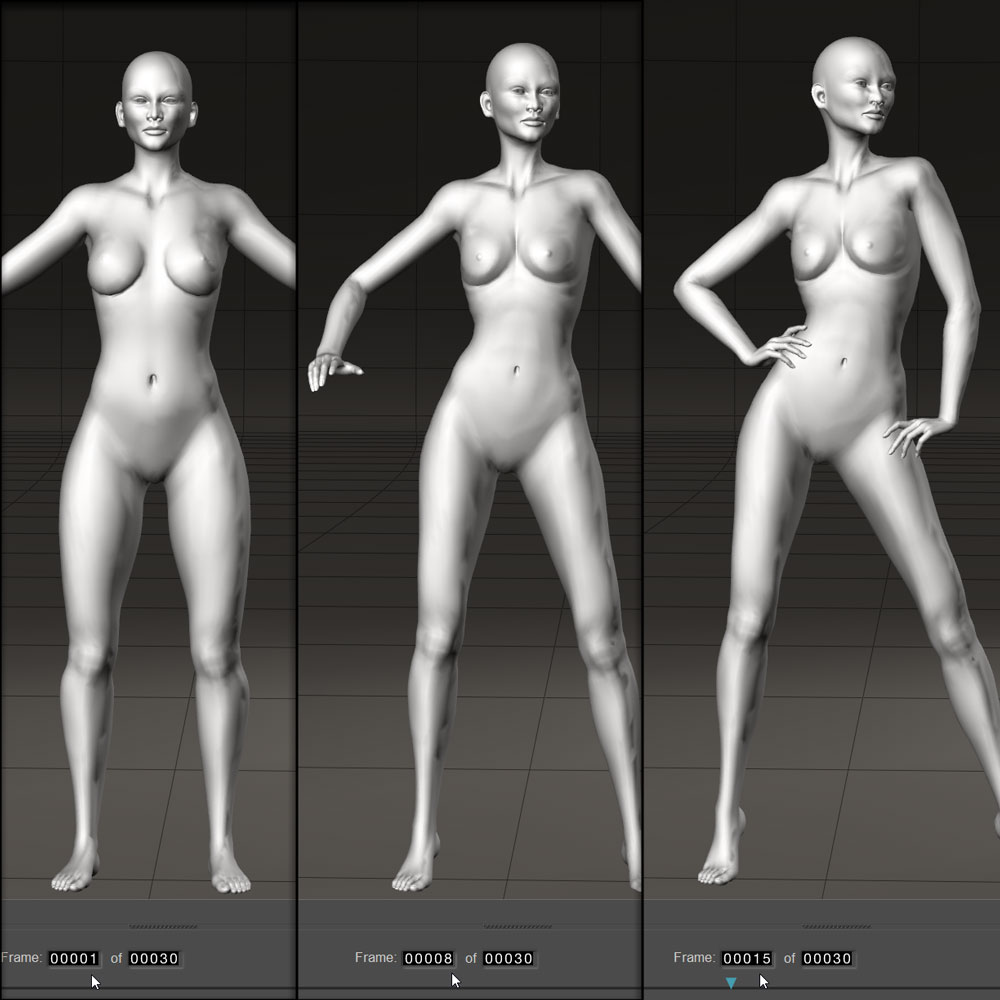
Next, go to the Animation Controls and select Frame 8. Now you can inject the body morph. If you’ve done this correctly, in Frame 1 will be the default La Femme 2 and in Frame 8 will be a morphed La Femme 2. This allows for the clothing to slowly adapt to her custom shape during the dynamics calculations. In Frame 15 you will pose the figure to your liking. See the example image at right for what it should all look like.
Step 2
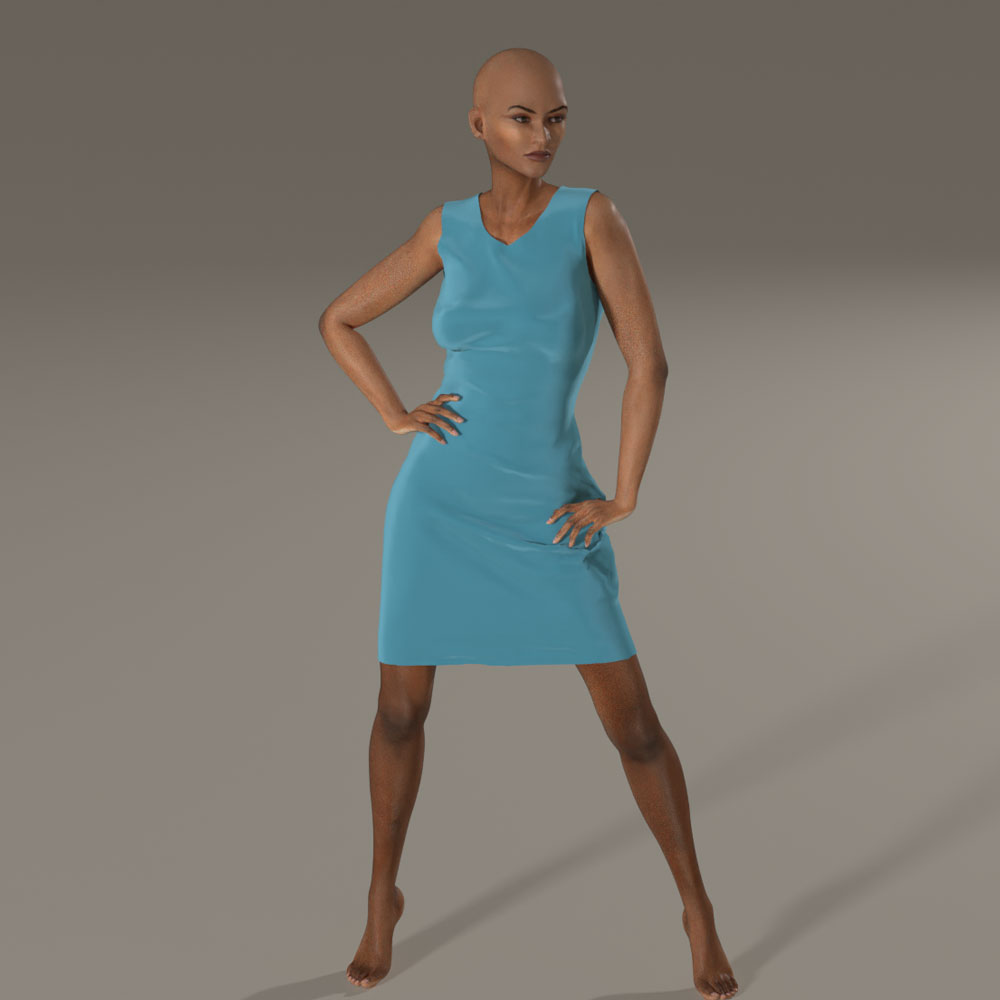
Back to Frame 1, load your chosen dynamic clothing. In the Cloth Room, setup everything the way you usually do then Calculate the simulation. Once completed, your finished simulation should now be morphed to her body as much as possible. Results may vary depending on the individual dynamic clothing props.
Step 3
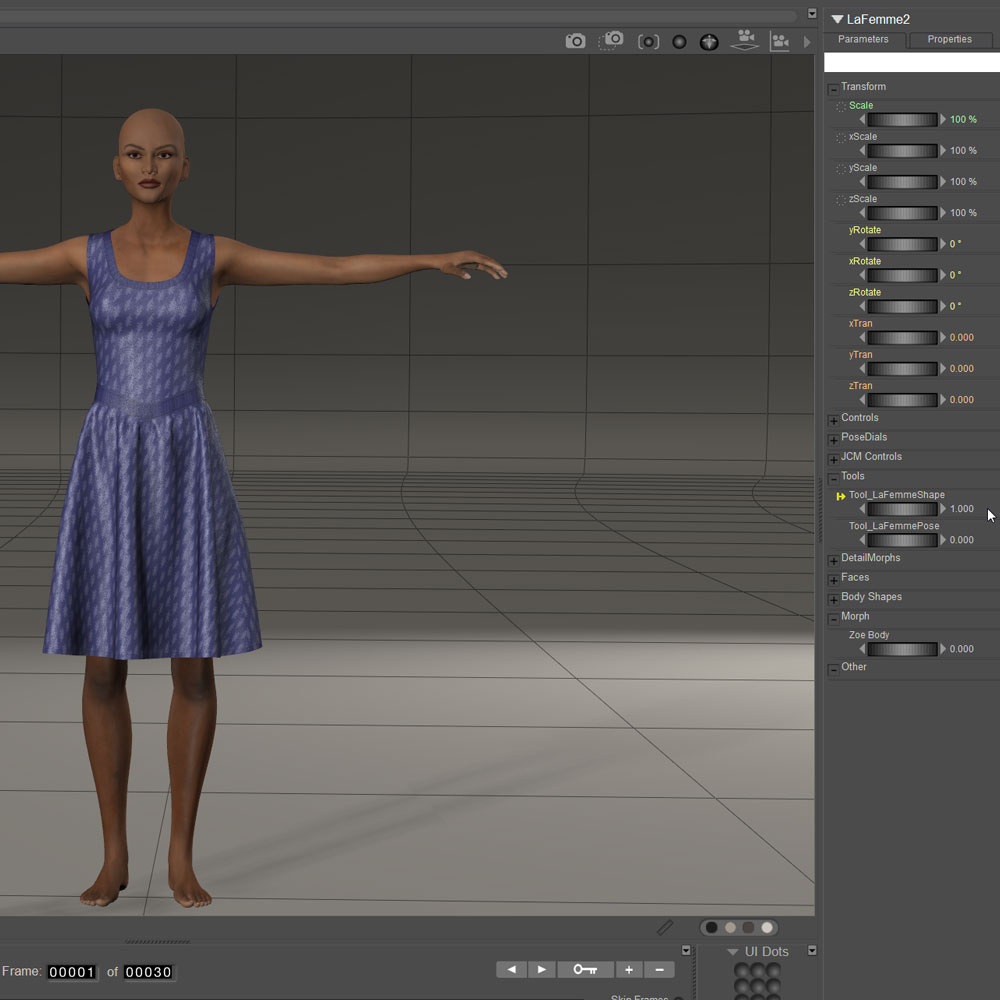
This time we’re going to fit La Femme 1 clothing to custom La Femme 2 characters. This is similar to Part 2 – Step 1 except that in Frame 1 you set the “Tools–>Tool_LaFemmeShape” parameter dial on La Femme 2’s body to a value of “1”. Next, in Frame 6 or 7, set the “Tool_LaFemmeShape” to a value of “0”. You will still inject your character’s body morph in Frame 8 then pose in Frame 15.
Step 4
Did you know you can use the same technique used to fit La Femme 1 dynamic clothing to La Femme 2 to also fit Victoria 4 dynamic clothing to La Femme 2? You’ll need this: V4 dynamics fit for LF2. After downloading and installing that, you will be able to add a “Tool_V4Shape” to La Femme 2’s body. You can see my results at right.

If you found this tutorial helpful:
Learn How to Support This Artist
or
Leave a Comment on This Post
Otherwise, feel free to share the link to this post using the “Share this:” buttons below this post to spread the word. The more viewers, the merrier! You can also find loads of 3D resources like I use at Renderosity. Feel free to visit via my affiliate link below this paragraph. Thank you!

